



How to connect to a shared folder using Mac OSX
Your campus Macintosh machine can connect to campus resources using your network ID and password.
To connect to a networked share drive such as your H drive (the home folder) or the P drive (the public folders) your Mac must be connected to the campus network in one of two ways:
- Connected to the Río-Secure wireless network
- Connected to a wired ethernet port on campus
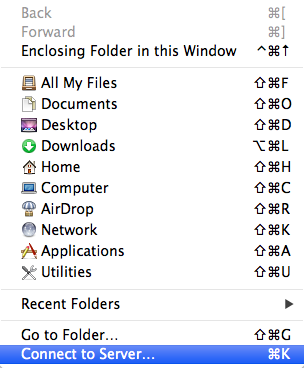
From the Finder, select Go in the Menu bar.

Select Connect to Server.
Enter the address of the network share.
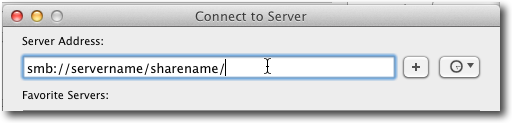
Windows network shares use the Server Message Block protocol and begin with
smb://
followed by the name of the server you are connecting to:
smb://home880/users$/jfaculty